
GamifyTL for teachers
Classroom engagement tools for teachers
GamifyTL gives teachers 8 live classroom activities, including quizzes, polls, word games, sequencing and image hunts, plus Resource Drop for QR file sharing. Students join from any browser with a six-digit room code or QR and a nickname. Teachers create sessions with a free account; students never need an account, an app or a download.
What you can run with GamifyTL
Every activity below runs live in the browser. Participants join with the room code or QR shown on your screen and answer from their own devices.
 Visual & logic
Target Hunt
Tap the correct part of a diagram, map or photo, from organs on an anatomy chart to rivers on a map.
Interactive activityExplore →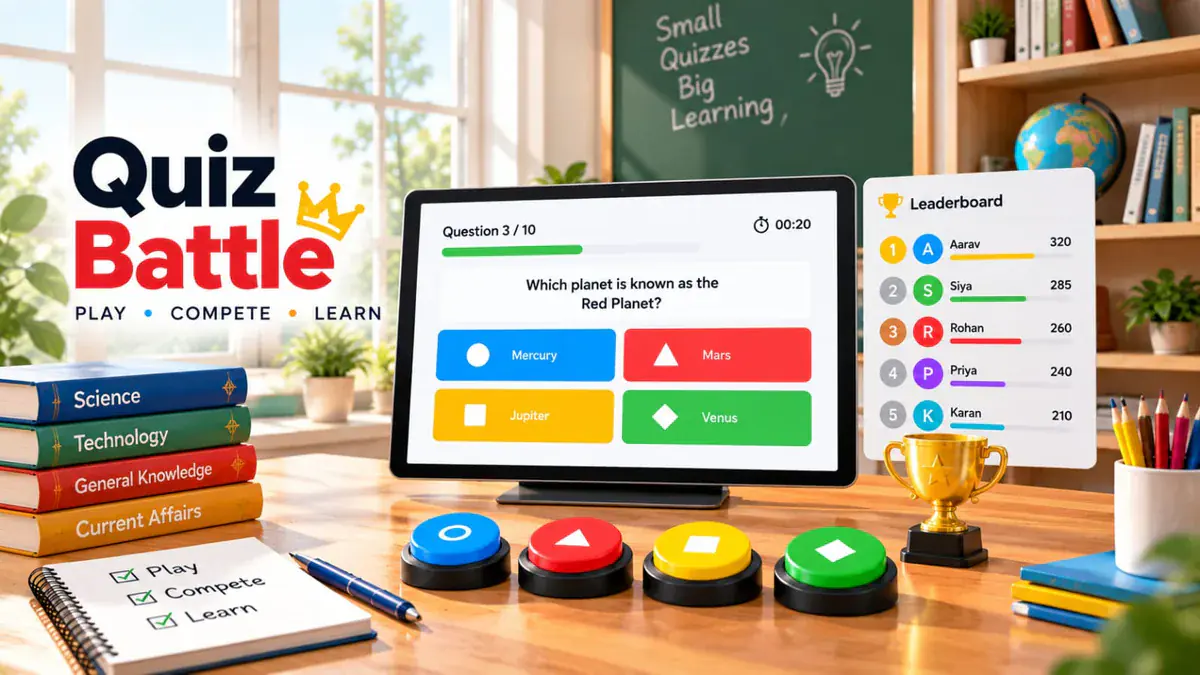 Assessment
Quiz Battle
Check understanding after a concept with timed multiple-choice questions and a live leaderboard.
Interactive activityExplore →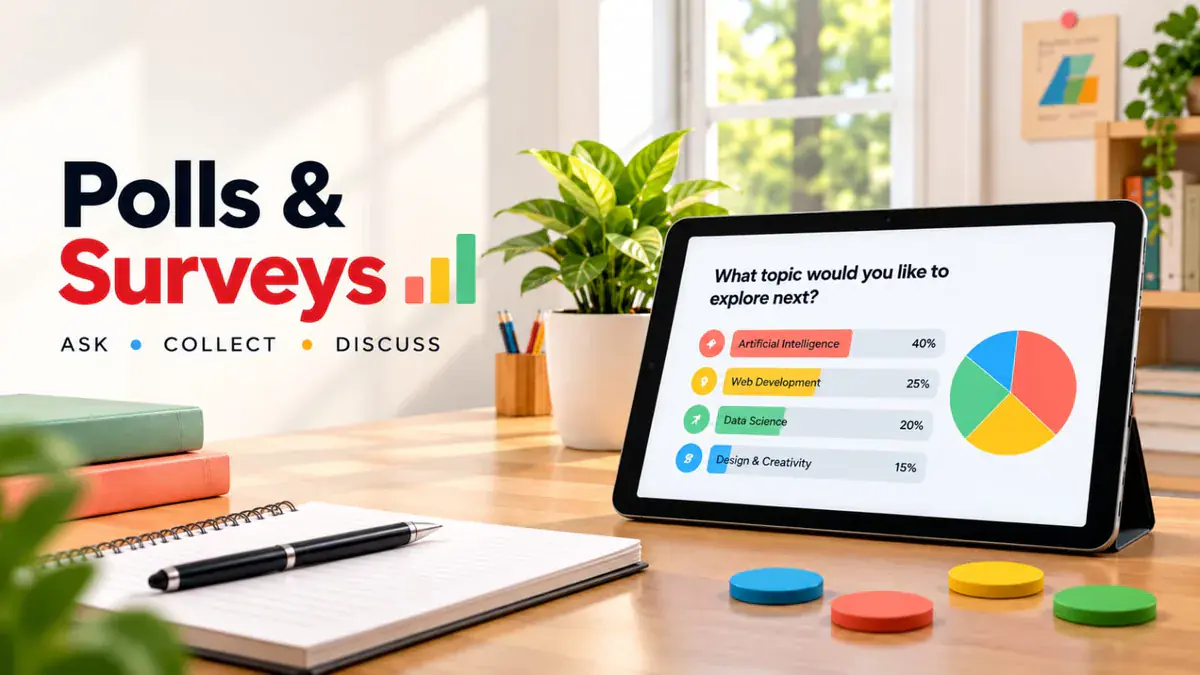 Assessment
Polls & Surveys
Take a confidence pulse before teaching, collect exit-ticket reflections or vote on the next example.
Interactive activityExplore → Visual & logic
Jigsaw Mission
Answer questions to unlock puzzle pieces and reveal a picture connected to the lesson.
Interactive activityExplore →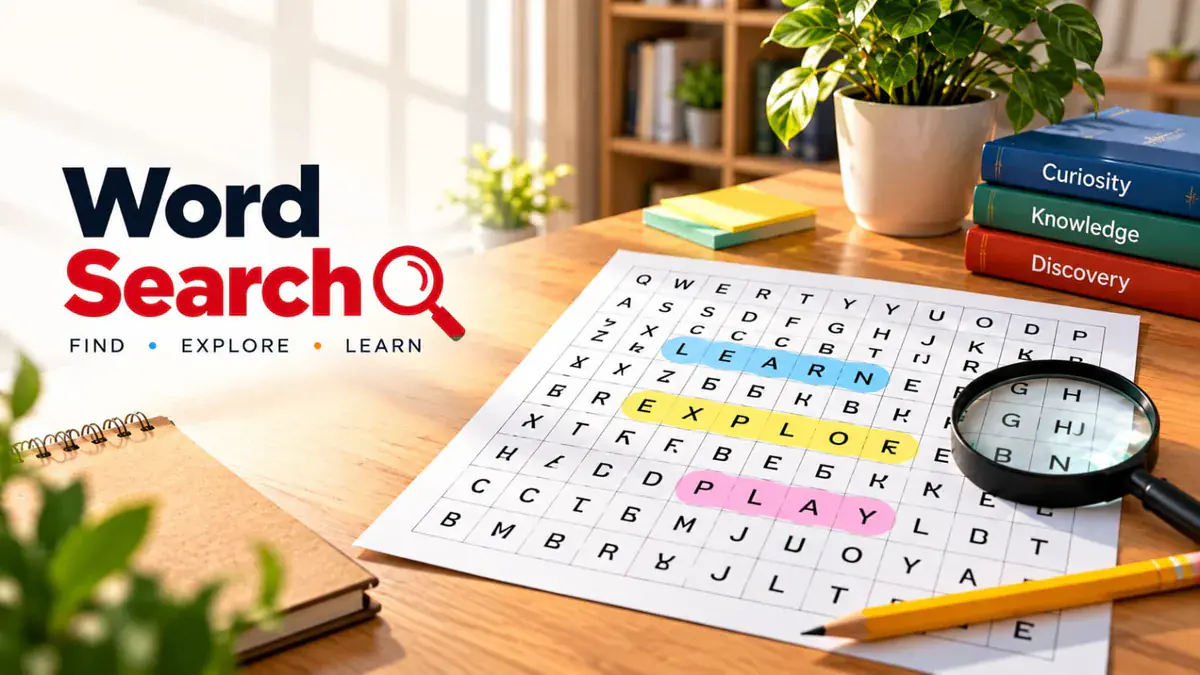 Word games
Word Search
Vocabulary discovery from clues on a shared letter grid, ideal for language lessons.
Interactive activityExplore →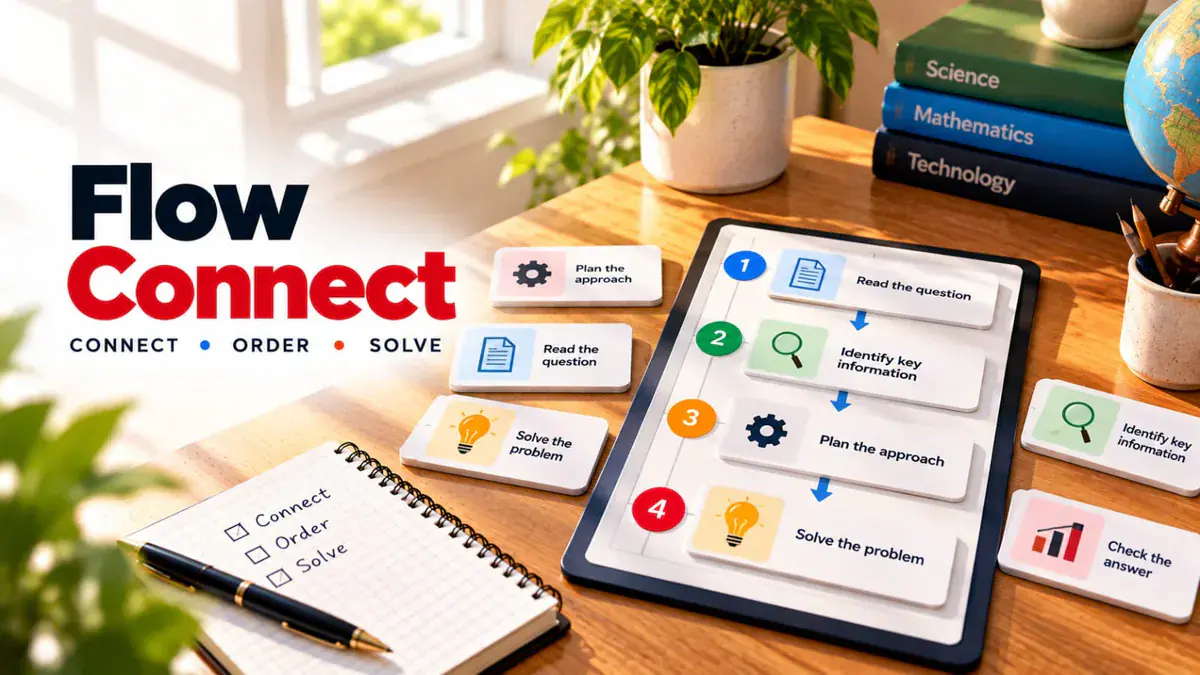 Visual & logic
Flow Connect
Order the steps of a process, timeline or method: cell division, historical events, lab procedures.
Interactive activityExplore →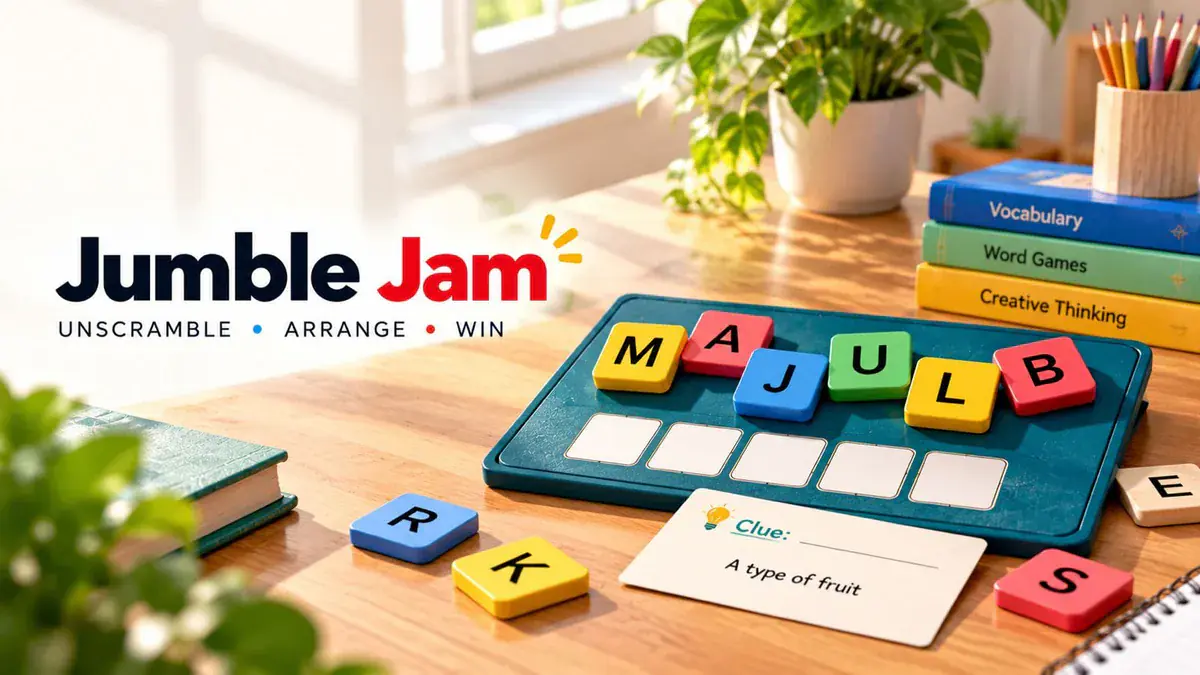 Word games
Jumble Jam
Spelling and terminology drills: students rebuild key words from scrambled letter tiles.
Interactive activityExplore → Word games
LinkSprint
Race between encyclopedia articles using only in-page links to practise research and connection-making.
Interactive activityExplore → Resources
Resource Drop
Share worksheets, slides and revision notes with one QR code instead of emailing files.
Interactive activityExplore →
Built for the way you work
No student accounts
Students join with a room code or QR and a nickname. There is nothing to install, no email to collect and no passwords to reset.
Works on the devices you already have
Any modern browser on a phone, tablet, laptop, Chromebook or interactive display can join. The host screen doubles as the class display.
You control the pace
Choose an overall timer, a per-question timer or manual pacing where you advance the room yourself and reveal results when the discussion is ready.
Questions written faster
Type your own questions or generate a draft set with AI from a topic, then edit every prompt and answer before class.
Results per question
See how many students answered each option, who finished and the live ranking, so the follow-up explanation targets the real misconception.
Free to start
A free teacher account includes every tool. Paid plans raise room capacity and retention for larger classes and departments.
A 40-minute lesson with GamifyTL
You do not need a game for every minute. Use one or two short activities at the points where you need to see what students are thinking.
Minute 0-5
Minute 5-20
Minute 20-30
Minute 30-38
Minute 38-40
- 1
Minute 0-5
Open with a one-question confidence poll on today's topic so you know where the class starts.
- 2
Minute 5-20
Teach the concept. Keep the room code on the board so late joiners can still take part.
- 3
Minute 20-30
Run a five-question Quiz Battle or a Jumble Jam set built from the lesson. Pause on the questions the class got wrong and ask a student to explain the right answer.
- 4
Minute 30-38
Use Flow Connect for a process or Target Hunt for a diagram to check the visual or sequential part of the lesson.
- 5
Minute 38-40
Drop the worksheet and recap slides with Resource Drop so everyone leaves with the material on their phone.
The same five hands go up every time
Whole-class questions reward the quickest and loudest students. A live activity gives every learner a private way to answer first, then makes the spread of answers visible so you can see who understood, who guessed and which misconception to address before moving on.
Questions from teachers and educators
- Is GamifyTL free for teachers?
Yes. Teachers can create a free account and use all 9 tools, including 8 live classroom activities and Resource Drop. Paid plans add larger room capacity, more simultaneous rooms and longer file retention. Students and participants never pay.
- Do students need an account, email address or app?
No. Students open gamifytl.com/join in any browser, enter the six-digit room code or scan the QR code shown by the teacher, choose a nickname and start. No app store, login or personal email is required.
- Can I use GamifyTL for a live classroom quiz like Kahoot?
Yes. Quiz Battle runs timed multiple-choice questions with live results and a leaderboard. GamifyTL also adds word games, sequencing, image hunts, polls and QR file sharing in the same account, so one tool covers the whole lesson.
- How many students can join one room?
Room capacity depends on the host plan. Check the current allowances on the pricing page; paid plans support large classes and school events. Test your school's Wi-Fi with a short rehearsal before a big session.
- Can I write my own questions or reuse them?
Yes. You can type questions, generate a draft with AI from a topic and edit it, and save question sets to reuse in later lessons. Always review AI-generated content before hosting.
- Does it work on school Wi-Fi and older phones?
GamifyTL runs in the browser with lightweight pages, so it works on typical school networks and most smartphones from the last several years. Keep the room code visible as a fallback for students whose camera cannot scan the QR.
- How do I share worksheets or slides with students?
Use Resource Drop to upload PDFs, presentations or documents and show one QR code. Students download the files directly to their phones. You choose how long files stay available.