
Interactive live polls
Run live polls that turn a room’s response into the next conversation.
GamifyTL Polls & Surveys lets a teacher, trainer or presenter collect live opinions, ratings and feedback in a browser. Participants join with a QR code or room code, submit a response from their own device and the host uses the result to guide the next discussion or activity.
What is an interactive live poll?
An interactive live poll asks a group for a response while everyone is together. It can be a confidence check, an icebreaker, a decision, a rating or a short exit reflection. The useful part is what happens after the vote: the host can react to the pattern, ask follow-up questions and adapt the session.
GamifyTL Polls & Surveys is designed for browser-based participation. The host creates prompts and response options or ratings, shares the room QR code or six-digit code, collects responses and reviews the result with the class, workshop or audience.
When to use it
Check confidence before teaching
Ask how confident the class feels about a topic before the lesson. Repeat the question later to start a concrete conversation about what changed.
Make a workshop decision visible
Use a quick vote to choose the next example, prioritise a scenario or make a group decision without relying only on the loudest voices in the room.
Collect feedback while it is useful
Close a session with a rating or reflection while people still remember the activity. Use the response to improve the next class or workshop.
How to run a live poll
- 1
Decide what you need to learn
Write a prompt that gives you an action to take: slow down, revisit a concept, choose the next topic or improve the next session. Avoid collecting personal or sensitive information in a classroom poll.
- 2
Build a clear prompt
Use plain language and response options that cover the realistic choices. Make it clear whether people are sharing an opinion, a confidence rating or feedback rather than answering a graded question.
- 3
Invite the room
Start the Polls & Surveys room and leave the QR code and room code visible. Participants join in a browser with a nickname, without installing an app or creating a participant account.
- 4
Show, discuss and follow up
Review the live result with the group, explain what happens next and use another activity if the response reveals an open question. Be precise about privacy; do not describe a poll as anonymous unless the actual settings and handling support that claim.
Choose the activity that matches your goal
Every activity runs in a browser. Choose the response format first, then use the room code or QR code to invite the group.
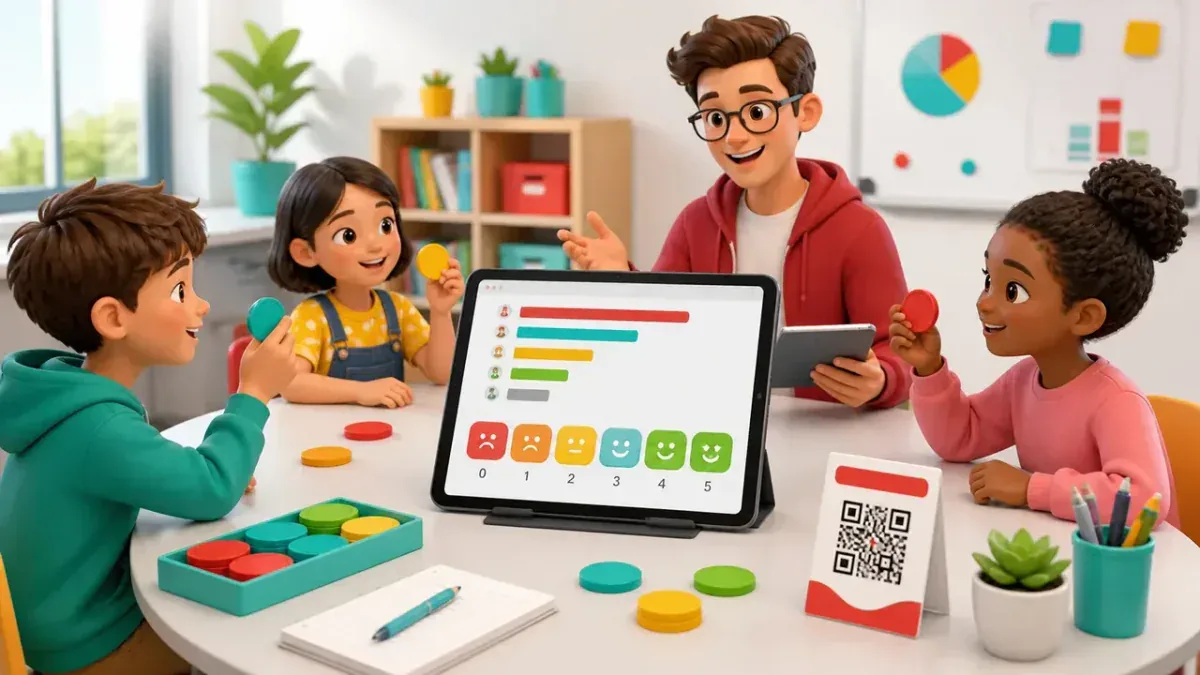 Polls & SurveysCollect live opinions, ratings and feedback for a class, workshop or audience.
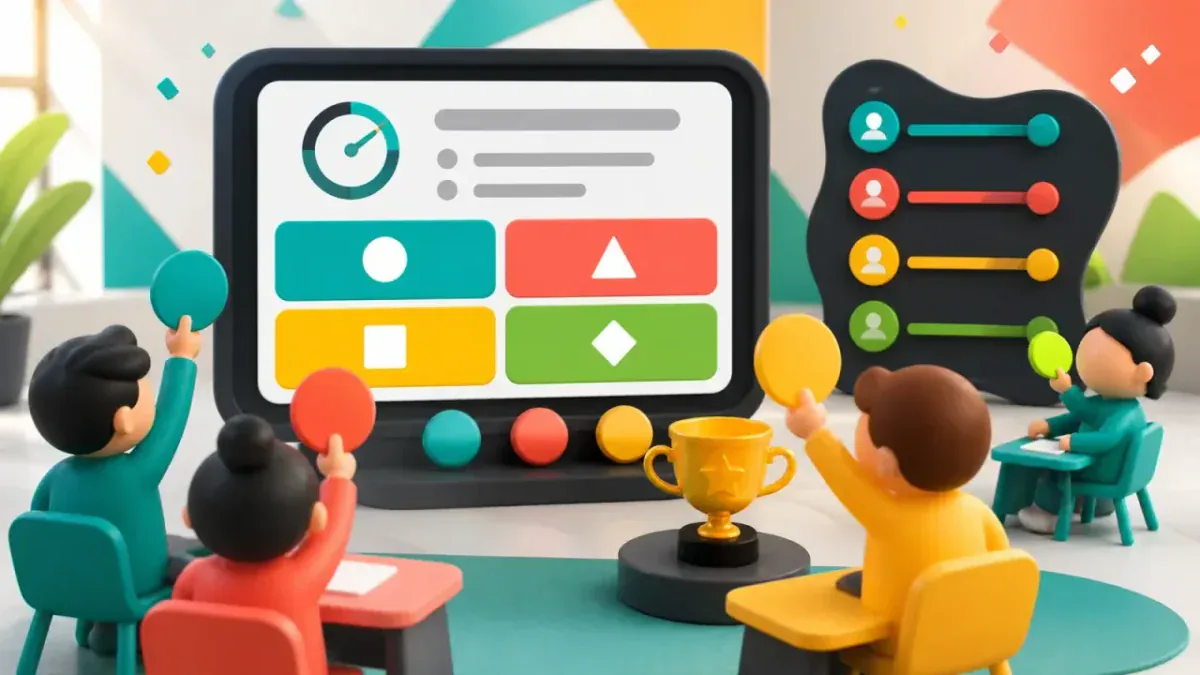 Quiz BattleFollow a poll with a multiple-choice knowledge check and discuss the answers.
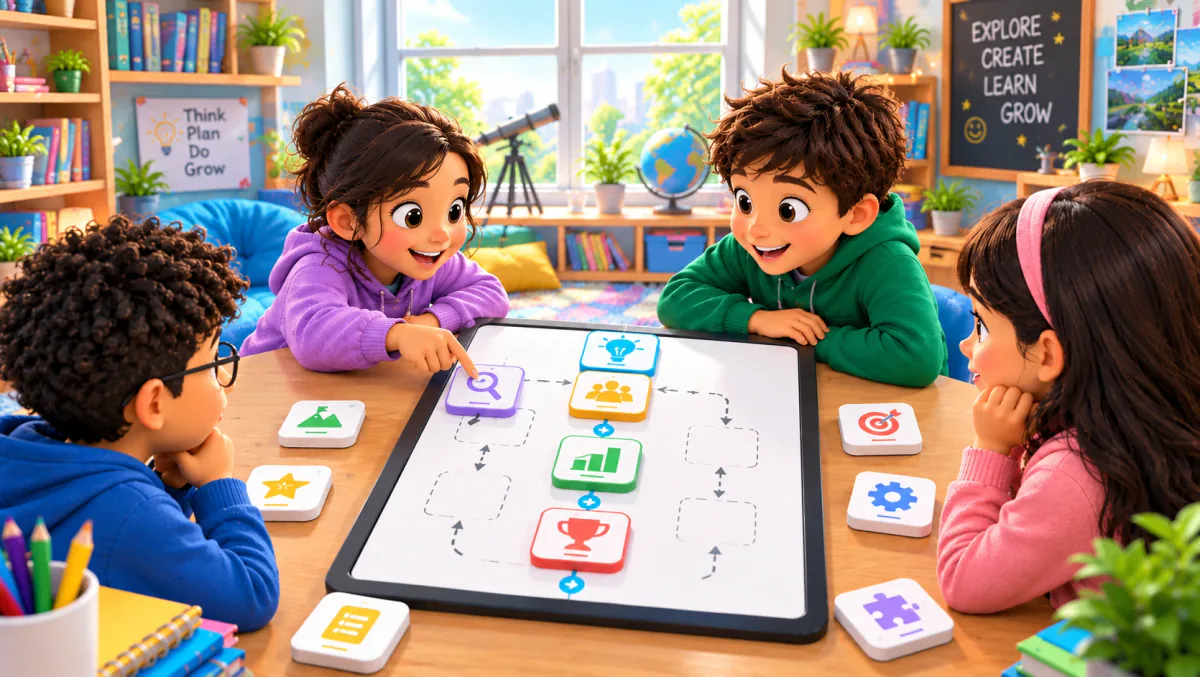 Flow ConnectTurn a workshop decision into a sequence-ordering activity that makes participants apply it.
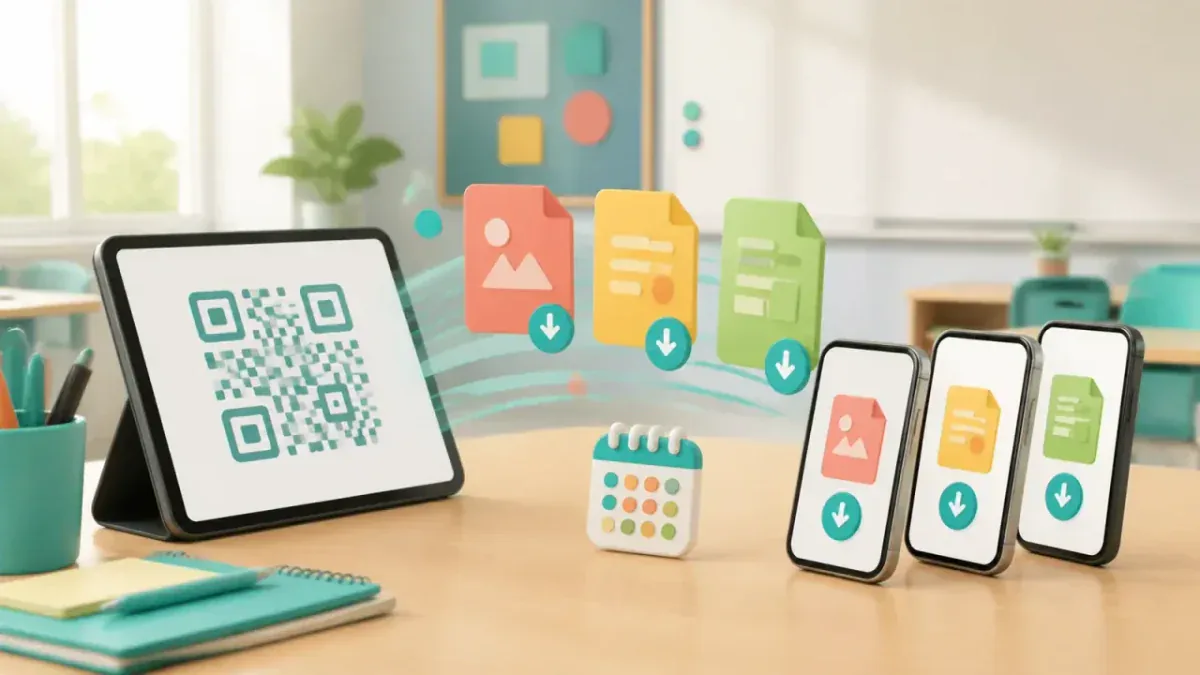 Resource DropGive the group the recap or follow-up material with one QR code after the poll.
Planning tips
- Use one clear idea per prompt so the result is easy to interpret.
- Give participants enough time to read the prompt before revealing the result.
- Explain how the group’s responses will shape the lesson or workshop so voting has a visible purpose.
- Use a Quiz Battle when you need to check a correct answer; use a poll when you need opinions, confidence or feedback.
Questions
- Can I run live polls for a classroom?
Yes. A teacher can create a Polls & Surveys session, show the room code or QR code and collect student opinions, confidence checks, ratings or exit reflections from their browsers.
- Can I use a live poll in a workshop or presentation?
Yes. Trainers and presenters can use live polls for an icebreaker, an audience pulse check, a group decision or session feedback. Participants join from a phone, tablet or laptop browser.
- Are live polls the same as anonymous surveys?
Not automatically. A live poll is a response format. Before describing any poll as anonymous, check the session settings and how participant information is handled, then explain that clearly to the group.
- Do participants need to install an app to vote?
No. Participants can join the host’s GamifyTL poll in a browser with the room code or QR code and a nickname. They do not need a participant account or app installation.
More from About
- About GamifyTLWhat we build, who it is for, and how a live session works.
- For teachersLive classroom games every student can join from a phone.
- For speakers & trainersKeep talks, workshops and training rooms participating.
- Classroom guideMatch the activity to the learning task, then run it live.
- Live online quiz guidePlan, run and discuss a browser-based quiz with the whole room.
- vs Kahoot! and SlidoCompare classroom workflows, not a feature checklist.