
Live online quiz guide
Create a live online quiz your room can join by QR code.
GamifyTL Quiz Battle is a live online quiz maker for classrooms, workshops and training sessions. A host prepares multiple-choice questions, shares a QR code or room code, and participants answer in their browser while the host reviews results and rankings with the group.
What is a live online quiz?
A live online quiz is a shared question activity that runs while a teacher, trainer or presenter is with the group. It is different from a self-paced worksheet: everyone joins the same room, responds during the same round and can discuss the answer before moving on.
Use a live quiz to surface what the room understands, not just to reward speed. GamifyTL lets the host create multiple-choice questions, choose a timing approach, show a join QR or six-digit room code and use the result of each question to decide what needs another explanation.
When to use it
Open with prior knowledge
Ask two or three questions before a lesson or workshop to find the concepts that need context. Treat wrong answers as a signal for discussion, not a grade.
Check understanding after teaching
Run a short quiz after a demonstration, reading or presentation. Pause on the response distribution and ask participants why the best answer fits.
Close with retrieval practice
End with a compact recap that brings key terms and decisions back into view. Share follow-up material with a QR code after the discussion.
How to run a live quiz
- 1
Set the learning goal
Write down the one idea, process or decision the group should be able to explain after the activity. Build questions that test that goal rather than adding questions only to fill time.
- 2
Prepare and review questions
Create your own multiple-choice questions or start from an AI-generated draft, then check every prompt, answer and timer before the session. Include believable incorrect options that reveal common misconceptions.
- 3
Open the room
Launch Quiz Battle and keep the join QR code and room code visible while people enter with a nickname in their browser. Participants do not need a student account or an app installation.
- 4
Run, pause and explain
Choose the available timing mode that suits the group. After a question, use the results to explain the answer or invite someone to explain their reasoning before continuing.
- 5
Use the result
Review the questions that split the room. Follow up with another example, a poll or a resource rather than treating a leaderboard as the end of the learning activity.
Choose the activity that matches your goal
Every activity runs in a browser. Choose the response format first, then use the room code or QR code to invite the group.
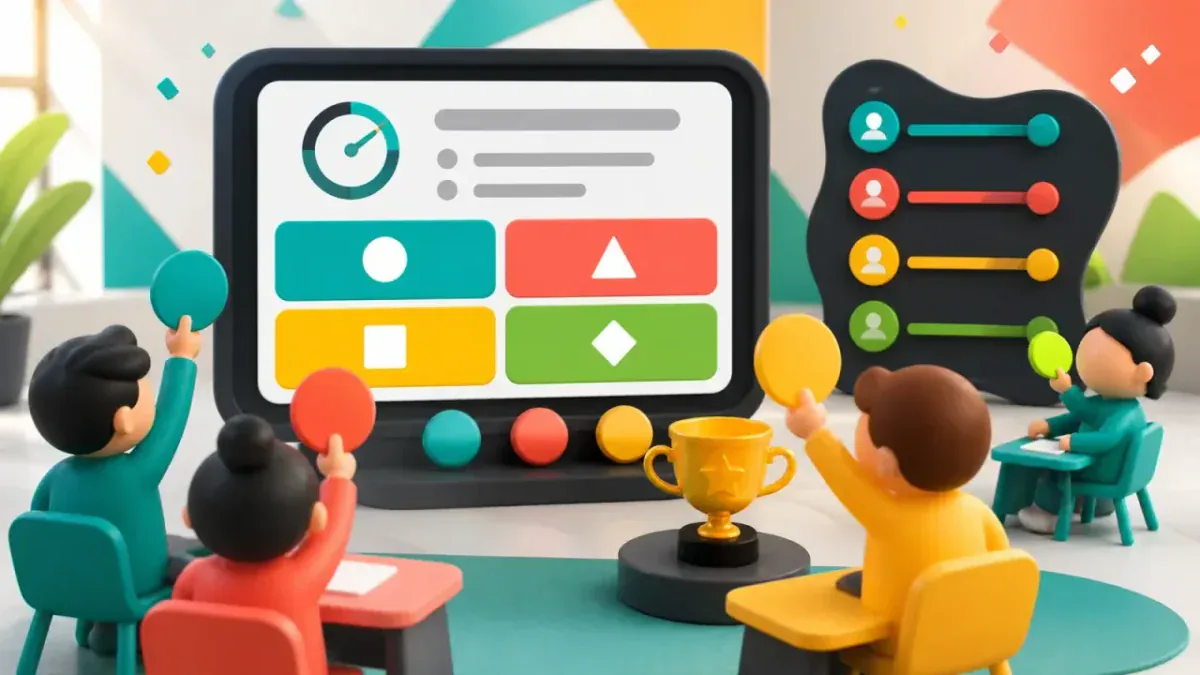 Quiz BattleRun timed or host-paced multiple-choice questions with live responses and rankings.
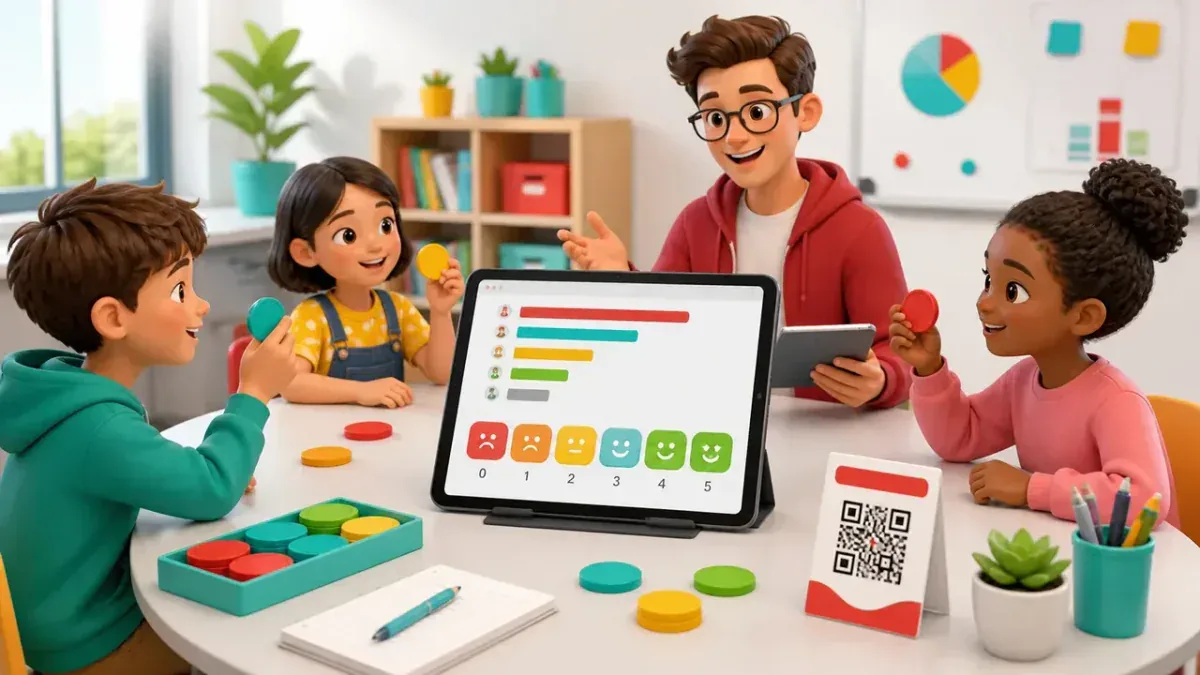 Polls & SurveysStart with a confidence check or collect an exit reflection before and after the quiz.
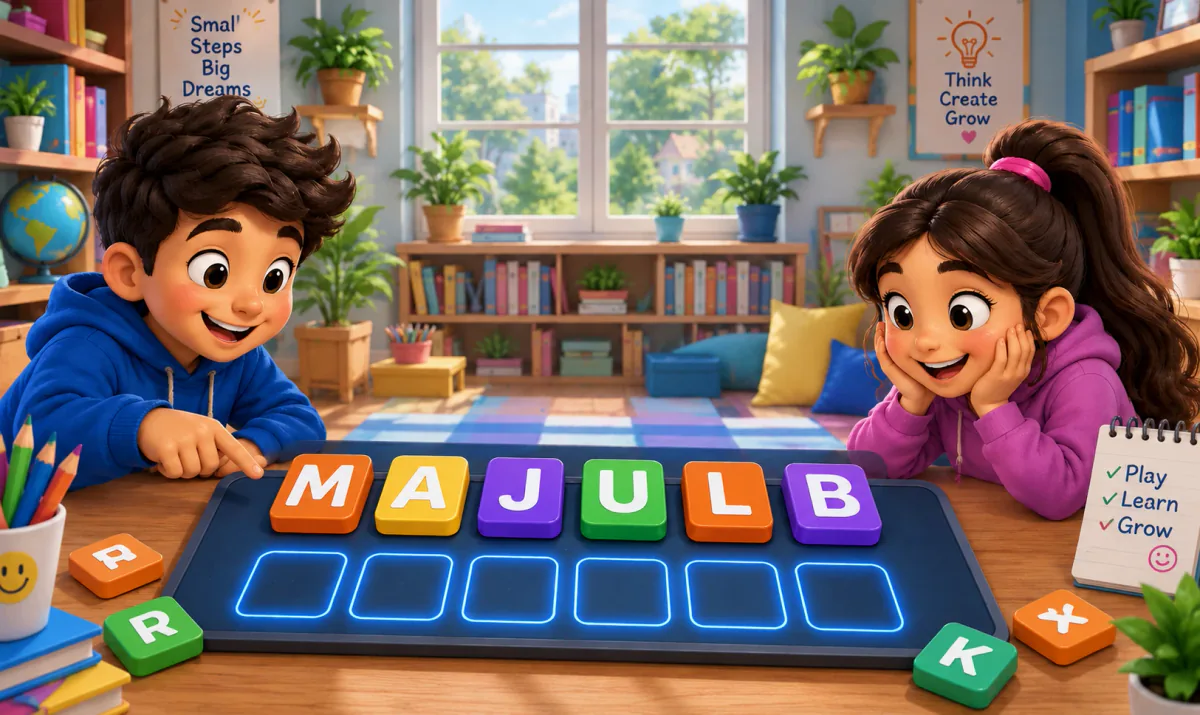 Jumble JamPractise spelling and terminology by rebuilding a key word from scrambled letters.
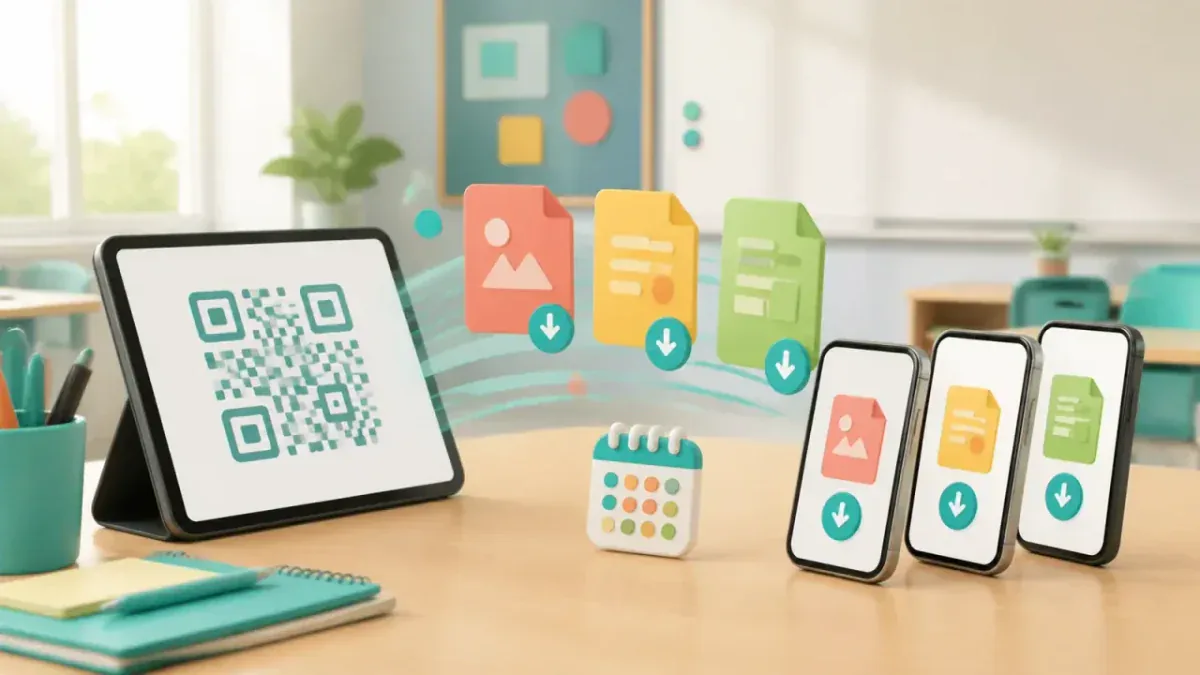 Resource DropShare a worksheet, slide deck or recap with a QR code after the quiz discussion.
Planning tips
- Keep the first session small: five well-chosen questions are more useful than a long generic quiz.
- Read each question and all answer options aloud when accessibility or language confidence calls for it.
- Leave room for a non-timed or verbal alternative if a participant cannot comfortably use the live interaction.
- Keep the room code on screen as a fallback for people whose camera cannot scan the QR code.
Questions
- Can I make my own live online quiz?
Yes. Hosts can create their own multiple-choice questions and correct answers in Quiz Battle. GamifyTL can also help generate a draft from a topic, but the host should review and edit every generated question before using it live.
- Do participants need an account to join a live quiz?
No. Participants open the join page in a browser, enter the room code or scan the QR code, choose a nickname and wait for the host to start. The host needs an account to create and run the session.
- Is a live online quiz only for classrooms?
No. Quiz Battle also works for workshops, training sessions and presentations where a host and audience are together at the same time. Choose questions and pacing that match the setting.
- How is a live quiz different from a poll?
A live quiz checks answers against a correct response. A poll collects opinions, ratings or feedback without treating one response as correct. Many sessions use a poll before or after a quiz to guide the discussion.
More from About
- About GamifyTLWhat we build, who it is for, and how a live session works.
- For teachersLive classroom games every student can join from a phone.
- For speakers & trainersKeep talks, workshops and training rooms participating.
- Classroom guideMatch the activity to the learning task, then run it live.
- Live polls guideUse classroom and workshop polls to guide the next conversation.
- vs Kahoot! and SlidoCompare classroom workflows, not a feature checklist.